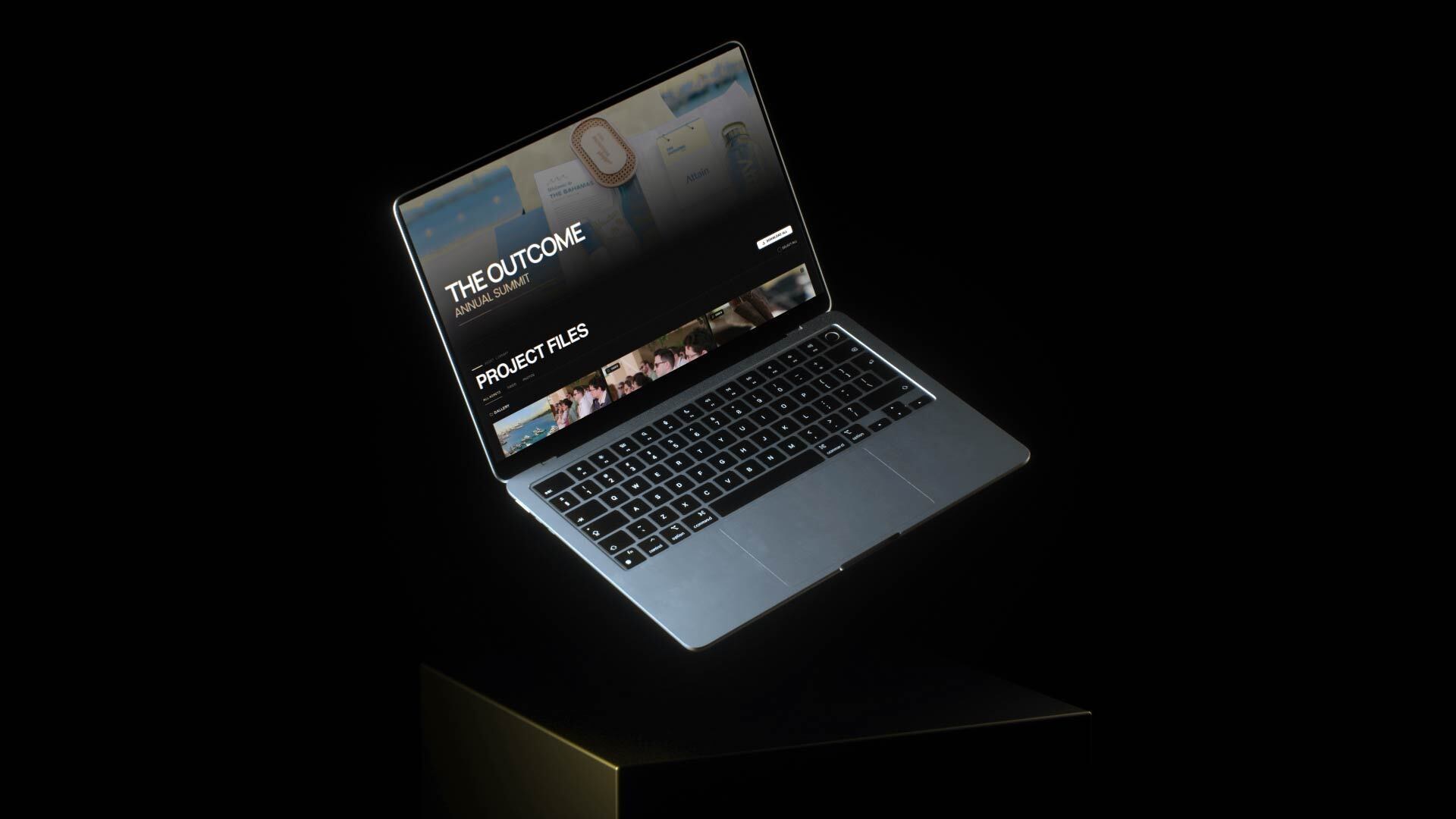
How to Share Event Videos and Photos With Attendees (One Link, No Logins)
The event is over and the edit is done. Now 400 attendees, a dozen speakers and three sponsors all want their moment, usually on their phones and usually the same week.
The organizer is your client, but attendees are the people who actually open the link. If they can't find their session or download a photo without signing up for something, the organizer hears about it, and you do too.
Here's how to set up event delivery so one link works for everyone.
Why the usual handoff breaks at attendee scale
• Drive and Dropbox folders ask guests to sign in or request access, and phones try to open 2GB files in a preview window.
• Transfer links expire in days, but attendees come back weeks later for a speaker clip or a headshot.
• Separate links per asset (recap in one email, photos in another, keynote in a third) mean nobody can find anything.
1. Put everything in one gallery, organized by how guests think
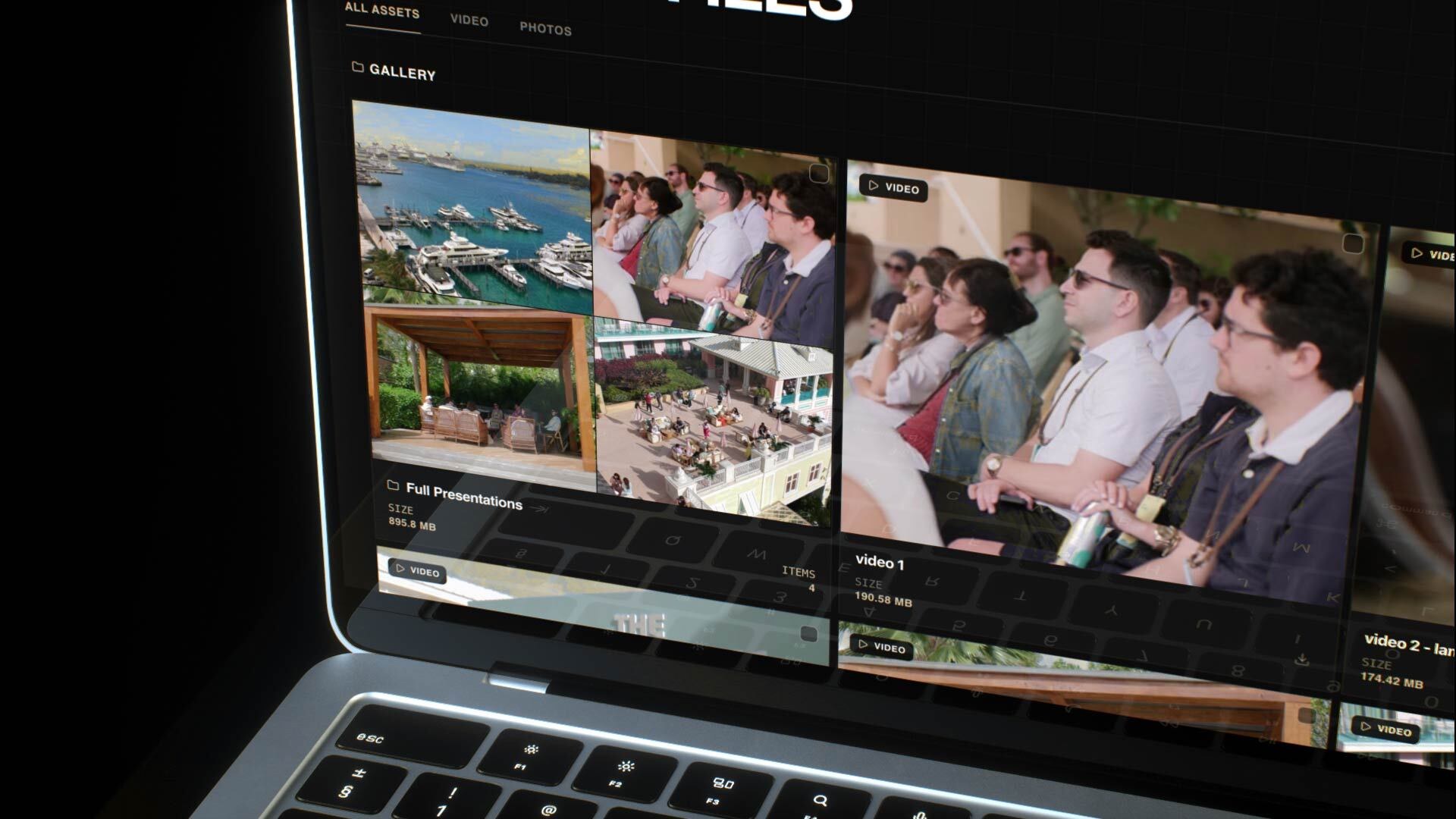
Attendees aren't looking for "Export_v3_FINAL." They're looking for Day 2, the keynote or photos. Split the gallery into folders like Highlights, Full Presentations, Day 1, Day 2, Photos and Socials. Folders can be nested and can hold photos and video side by side.
2. Make it work without an account
Anyone with the link can watch on a phone, tablet or laptop, with no sign-up and no app. Videos stream instantly, so guests can watch the recap on the train home and only download what they need.
3. Let guests download in full quality, at the level they need
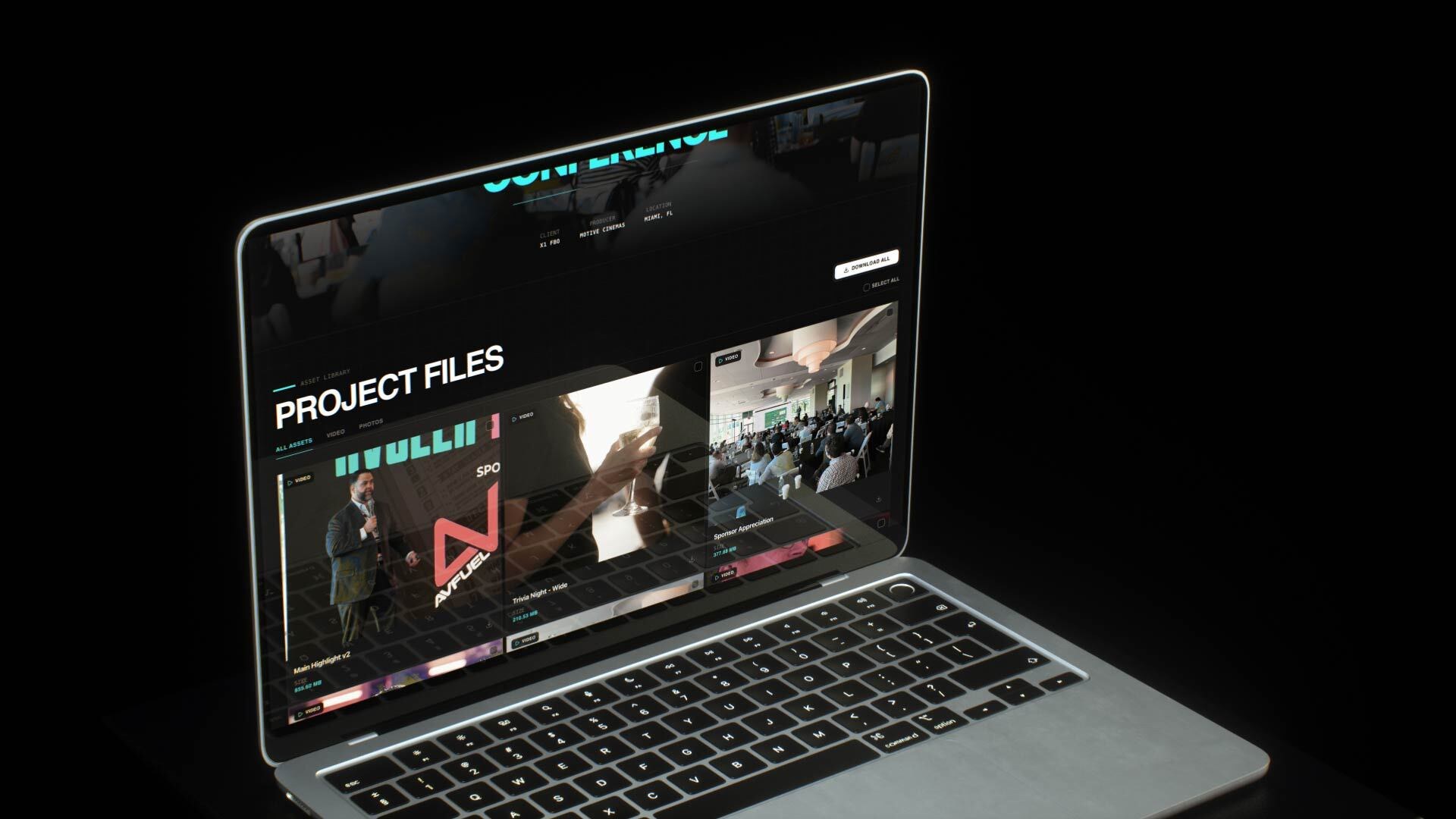
A speaker wants their one session file. A sponsor wants the whole Sponsor Content folder. The organizer's marketing team wants everything. Guests can grab a single file in full resolution, download a whole folder, or use Download All.
4. Decide what's public and what isn't yet
Not everything should go to every attendee on day one. Common setups:
• A public highlights gallery for all attendees, shared in the post-event email.
• A password-protected gallery for full session recordings, or for content that's still embargoed.
• Watermarked previews with downloads off for cuts the organizer still needs to sign off on (turning the watermark on switches downloads off automatically).
More on this in How to Password Protect Video Delivery for Clients.
5. Keep it live after the event
Event content gets reused all year in recap posts, sponsor decks and next year's promo. Galleries stay live for as long as you like, so there are no 7-day expiry links, and the link in the post-event email still works in March.
6. Put your name in front of every guest
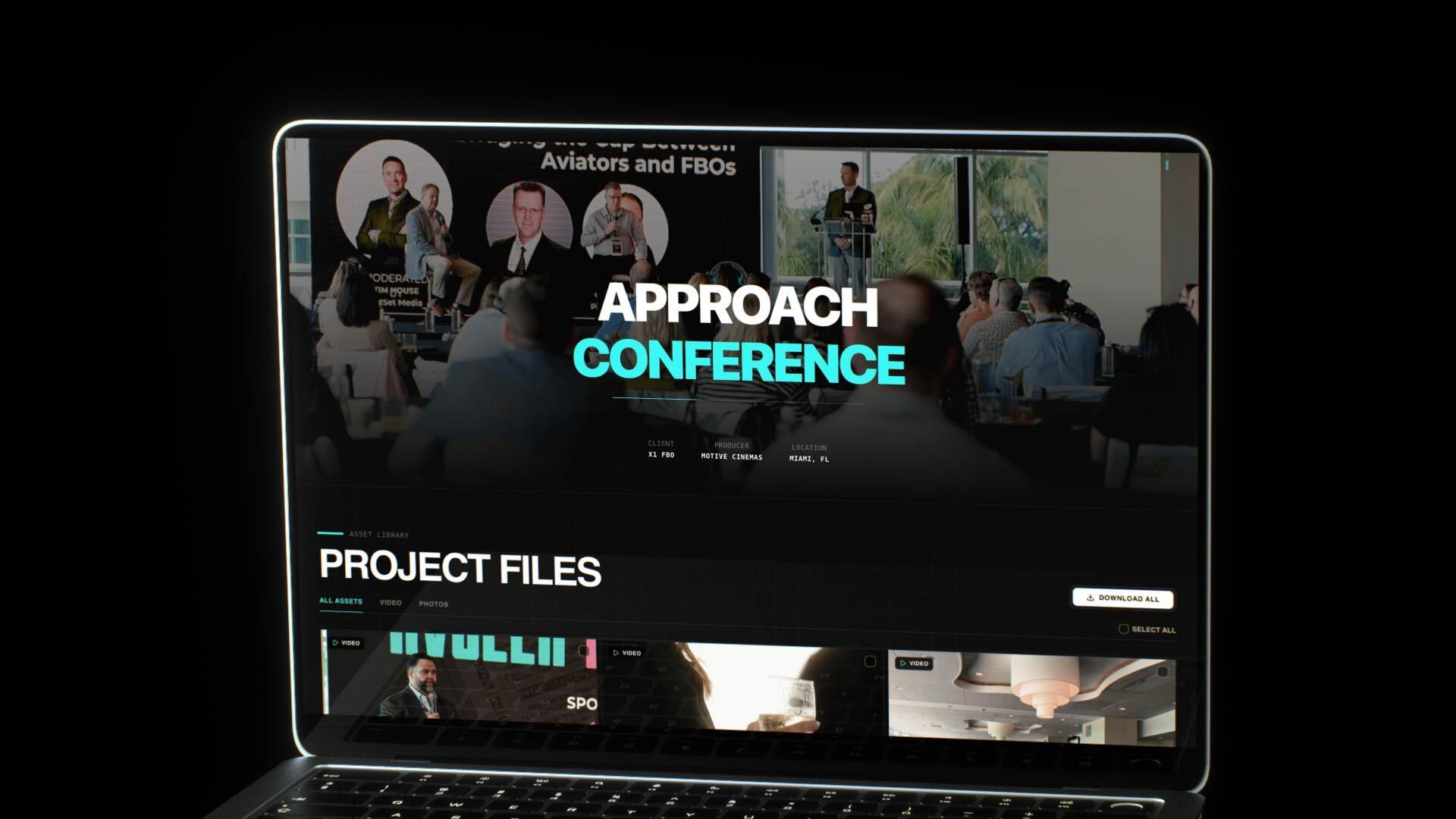
Every attendee who opens the gallery is a potential future client. With your logo and the event's colors on the gallery (and no DLVRD branding in front of your clients), 400 guests see your work presented like a premium production company, not a shared folder.
A simple post-event checklist
• Upload the highlight reel, session recordings, socials and photos into folders.
• Decide which folders are public and which need a password.
• Send one gallery link to the organizer for the attendee email.
• Share the same link (or a protected one) with speakers and sponsors.
• Leave it live for next year's promo.
Related: How to Deliver Video and Photos Together in One Link · How to Deliver Corporate Videos to Multiple Stakeholders
Deliver your next event like a premium production company. See how DLVRD works for event videographers →

The new standard for professional video delivery. DLVRD provides client galleries and secure video hosting for creators who refuse to compromise on client delivery.