How to Get Timestamped Video Feedback From Clients (No Login Required)
Every editor knows this email: "Love it! Just a few small things — the part near the start where he's talking, can we trim that? And the music feels loud somewhere in the middle."
Which part? Which music cue? Which version was the client even watching?
Vague feedback is one of the biggest hidden time costs in post-production. Every unclear note means a clarification email, another day of waiting, and sometimes a revision you never needed to make. Clear, timestamped feedback removes most of that.
Why email feedback breaks down
When review happens over email or text, the same problems repeat:
• No reference point. "Around the middle" could mean thirty seconds either way.
• Scattered notes. Feedback arrives across three emails, a text and a voice memo — often from different people.
• Version confusion. The client may be commenting on an old link.
• Lost context. Two weeks later, nobody remembers what "fix the logo thing" meant.
The fix isn't asking clients to work harder. It's putting the feedback where the video is.
Put comments directly under the video
The simplest review workflow lets the client watch the cut and leave a note right there, tied to the exact moment they mean.
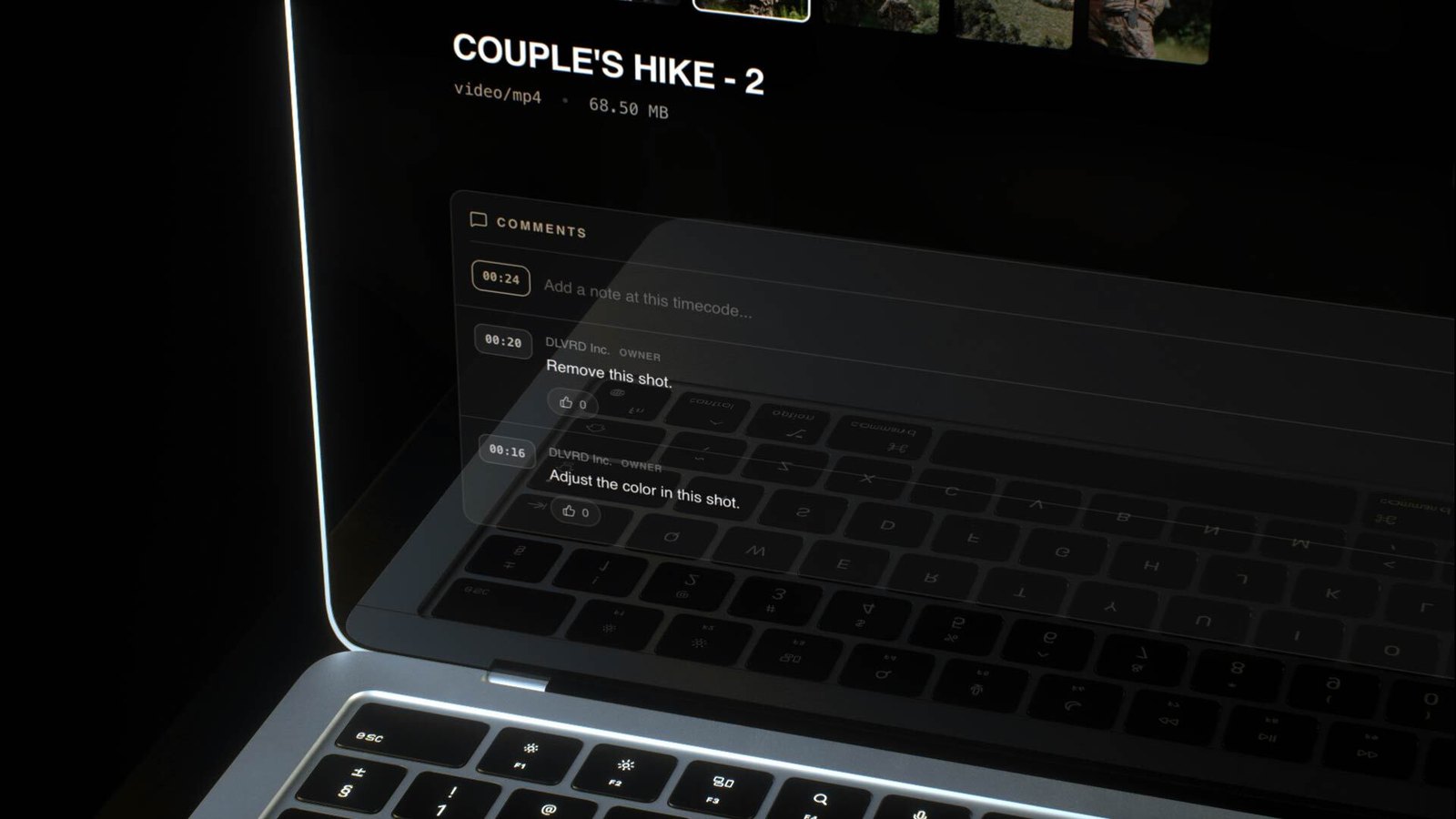
In DLVRD, client comments appear under the media with a timecode attached. You see exactly where each note belongs — instead of "the part near the start," you get "Remove this shot" pinned to 0:20.
Don't make clients create an account
Many review tools ask clients to sign up before they can comment. For a busy marketing manager, a couple, or a real estate agent, that's often where feedback stalls.
With DLVRD, clients don't need to log in to leave comments. They open the link, watch, and add a note. Less friction means faster, more complete feedback.
Keep every round in one place
When all comments live under the video, you have one record of what was asked for:
• Work through notes in timecode order in your edit.
• Check every comment was handled before sending the next cut.
• Point back to the original note if a client later asks why something changed.
If you're sharing early cuts, pair this with the steps in How to Securely Share Video Drafts Before Client Approval: password protection, link expiry, and a watermark on unapproved cuts. Turning the watermark on switches downloads off automatically, so a review copy stays a review copy.
Tell clients how to give useful feedback
Even with timecoded comments, a short note up front helps:
Hi [Client Name], the latest cut of [Project Name] is ready: [Gallery Link]. Pause at any moment you'd like changed and leave a comment under the video — no login needed. Please send all feedback by [date] so we can deliver on schedule.
Ask for one consolidated round per stakeholder group when you can. Specific notes ("logo too small at 0:42") beat general reactions ("the ending feels off").
From feedback to final delivery
Once the comments stop and the client is happy, deliver the final files: remove the watermark, enable downloads, and turn on download notifications so you know the moment the client has the file — see How to Know When a Client Downloads Your Video.
For the full handoff process, read How to Deliver Videos to Clients: The Ultimate Guide.
The bottom line
Clear feedback is faster feedback. Comments tied to timecodes, no client login, and one place for every revision round mean fewer clarifying emails and fewer wasted revisions.
Try DLVRD free and send your next cut with feedback built in.
.webp)
The new standard for professional video delivery. DLVRD provides client galleries and secure video hosting for creators who refuse to compromise on client delivery.